>>
Download setup file "FRF.EXE" <<
or
>> Download setup file "FRF.ZIP"
<<
2021:
Update elements counting for international level 2021 Agen
2020:
Update
elements for AUS, and more details.
2019:
Update elements for AUS, and more details.
2018:
New File structure..
2017:
Byla p id na podpora pro omezen po tu prvk , podpora pro Skill judge (v praxi tren ra neviditeln ), ru se obligatory.
The most important changes in FRF for year 2012
For czech region – Add Performance Class and filtering elements for every Class.
All others country – Please select Performance Class I. (Best)
Add rutine for simply moving timing mark – move green arrow Up or down …
Column “DOB” … write only Year. Last Column calculating age, and age exception.
Byly p id ny v konnostn t dy a technick prvky jsou nyn filtrov ny podle zvolen t dy a v ku.
Byla zjednodu ena editace – p esouv n asov ch zna ek – nyn jsou pouze 3 zna ky, a to po 30, 60 a 90 vte in ch, p esun zna ek je mo n posunut m zelen ch ipek my .
P i z pisu jmen z vodn k zapisujte pouze rok narozen , v posledn m sloupci se automaticky dopo t v k a podle zvolen kategorie se ozna v kov v jimky.
Byl p id n samostatn sloupen pro ozna ov n n hradn k (substitutors).
The most important changes in FRF for year 2009.
New items were added in the FRF program for registration on international competitions.
The arrival/departure information, booking of the all included package, and accommodation selection were included in the FRF. Now these data can be entered in one form and sent to the local organizer. FRF now may replace Final Delegation List, Arrival Departure Notification Form a Final Hotel Package Booking.
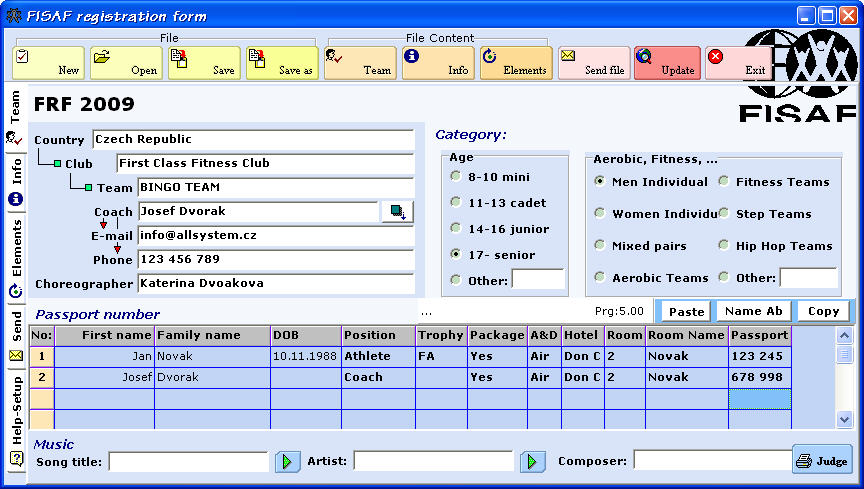
The following picture shows
an example of simple registration – one athlete and his coach.
The athlete is registered for Senior Men Individual category and
Fitness Amateur Individual Trophy competition. Both the athlete and
the coach order a package. The details concerning their arrival and
departure are reported in the A&D column (see later). They book
accommodation in Don Juan hotel together in double bed room. Both
report their passport number.
The registration should be filled in columns from left to right. Date of birth (DOB) is compulsory for the athletes, other persons needn´t fill in this information.
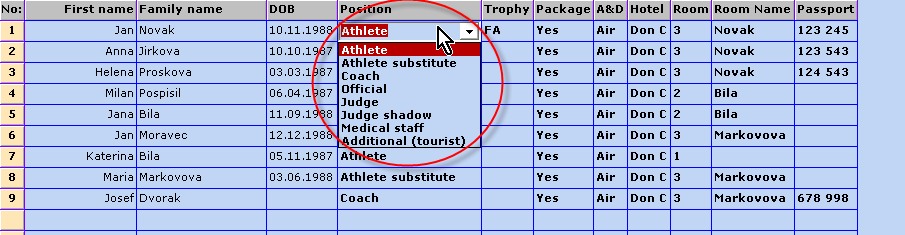
It can be stated who is athlete, accompanying person, coach, etc. in the Position column. If there is no information in this column, it is supposed that the registered person is an athlete. The coach(es) and other accompanying people can be registered (and order the package and book the accommodation) together with athletes using this new version of FRF.
The registration for the Individual Trophy can be determined for individual persons in the FRF table.
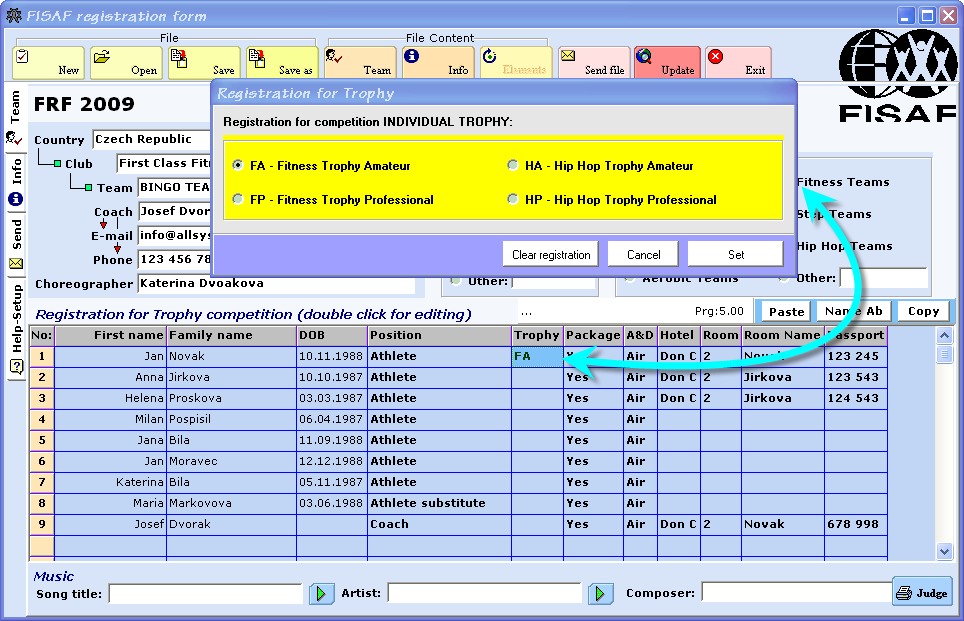
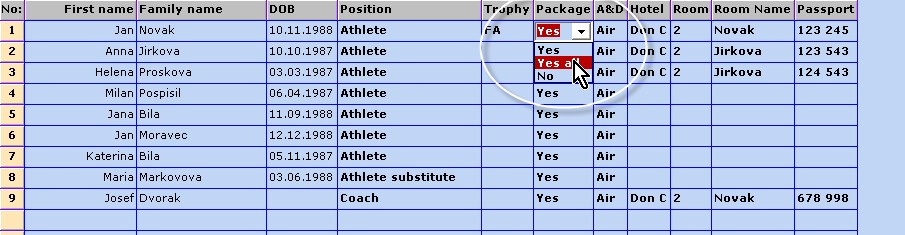
The order of the all included package can be specified for each person in the table. Choosing “Yes all” item completes the order of the package (Yes) in all filled lines. The package can be selected also for accompanying persons
.
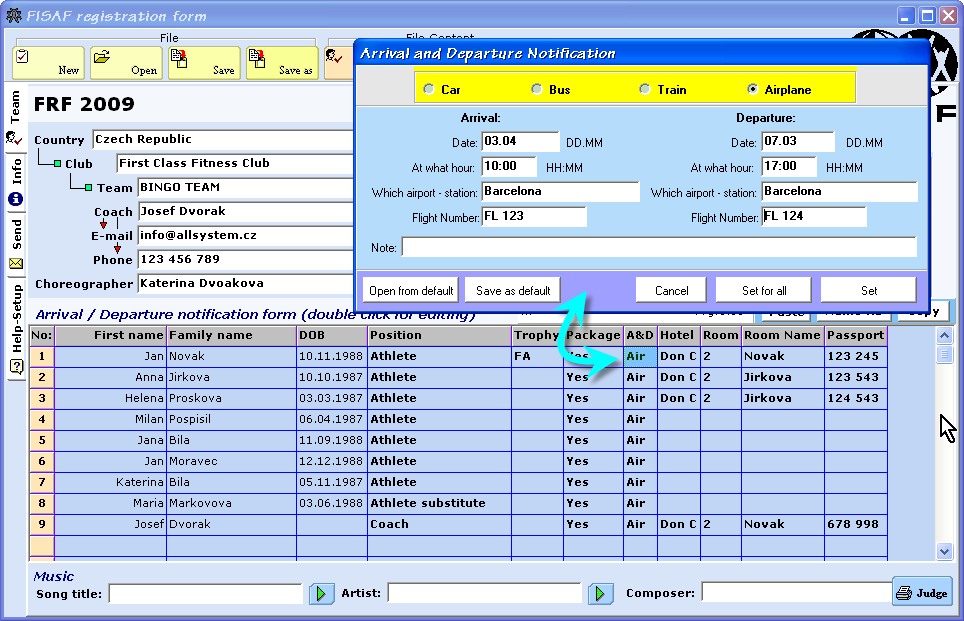
Arrival and Departure Notification form opens after double-click in the next column (A&D). The “Set for all” button saves the information entered in the form for all filled lines, the “Set” button saves the information for the selected line only.
Select hotel name:
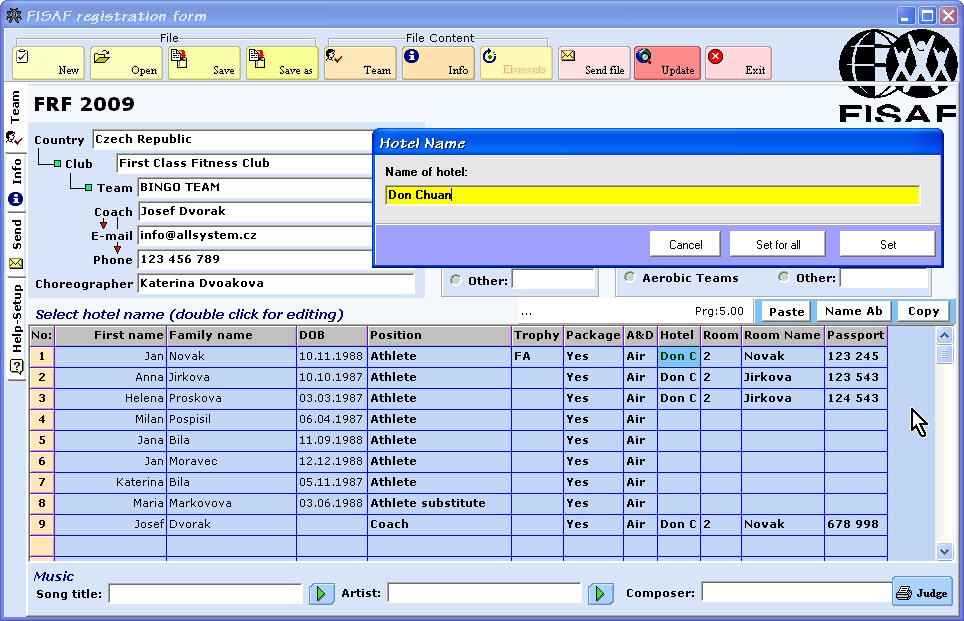
The type of the room (single bed, double bed, …) should be specified for each name.
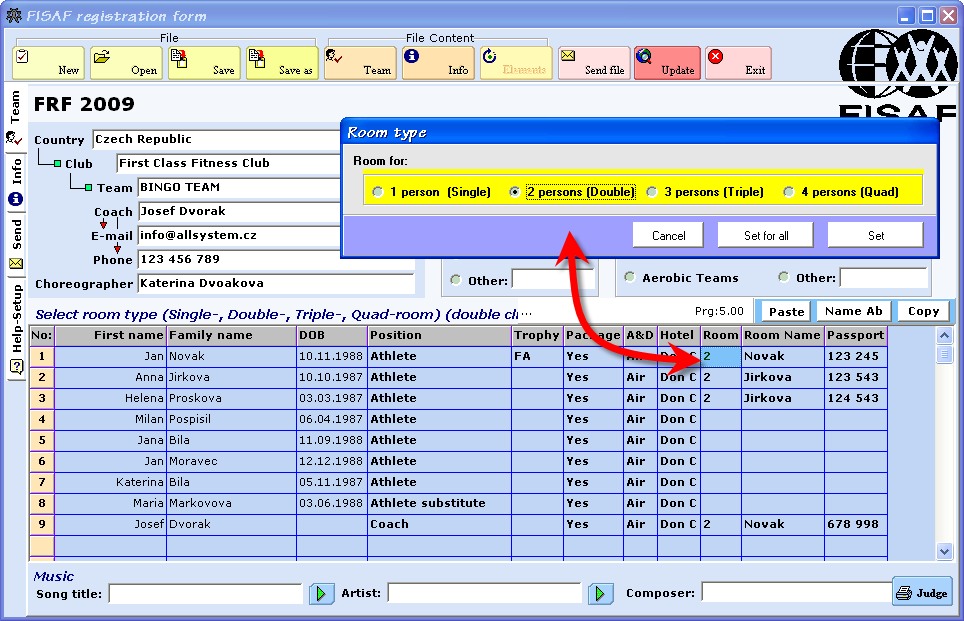
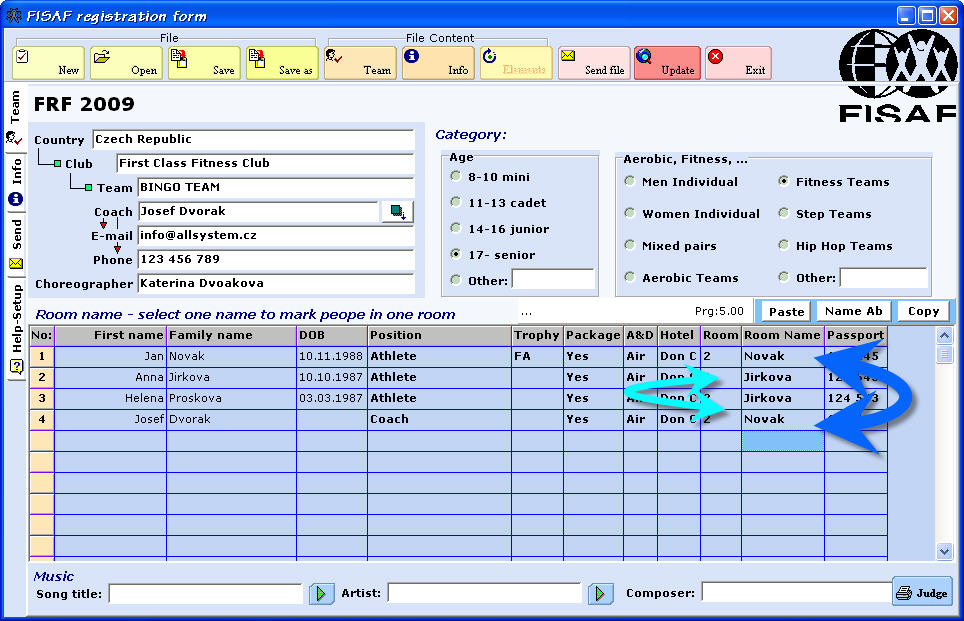
The “Room Name” column determines people who will be in one room together. The surnames of the registered people are offered for definition of accommodation arrangement. To define who will live in one room, use the surname of one of those people. Also, you can use your own labelling of the rooms, for example CZ1, CZ2 …. It is also possible to determine people registered in two different registrations who will be accommodated together (in both FRF files the name of the room must be the same).
In the following example one double-bed room is booked for Mr. Novak and Mr. Dvorak, and another room for Mrs. Jirkova and Proskova.
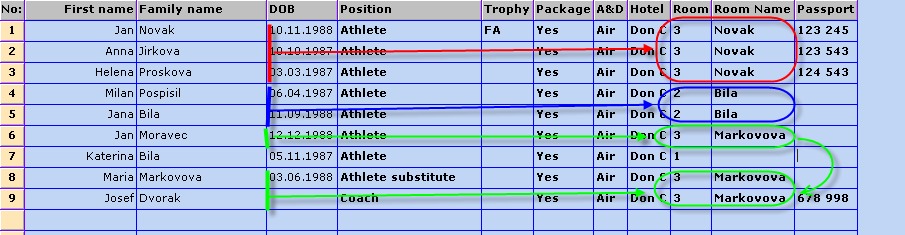
The next example represents the situation when Novak, Jirkova, and Proskova have ordered one three-bed room. Posp il and Bila will have a double-bed room. Moravec, Markovova and Dvorak will be accommodated in another three-bed room, while single bed room is booked for Katerina Bila.
Accommodation in one room can be specified also for people registered in two distinct FRF files – for example if there is a triple-bed room ordered in one FRF and there is a bed free, it can be occupied by somebody registered with another FRF file – it is necessary to fill in the same Room Name for those people (in both FRF files) who should be accommodated together.
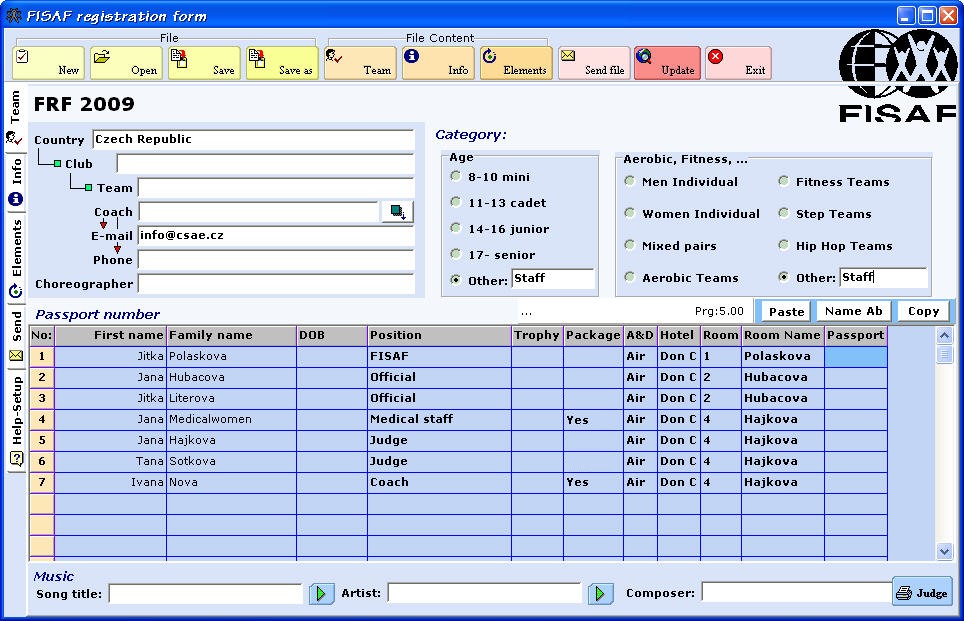
It is expected that all participants of the championships, including accompanying people, coaches, judges, officials (corresponding to Final Delegation List) will register using the FRF program. The small number of accompanying people can be registered together with the athletes in one FRF (see the preceding example). The other option is the separate FRF file for those persons (probably filled by one person in the national FISAF organisation responsible for these registrations):
|
For FISAF Members country |
Pro tren ry esk ho svazu aerobiku |
FRF – FISAF Registration Form
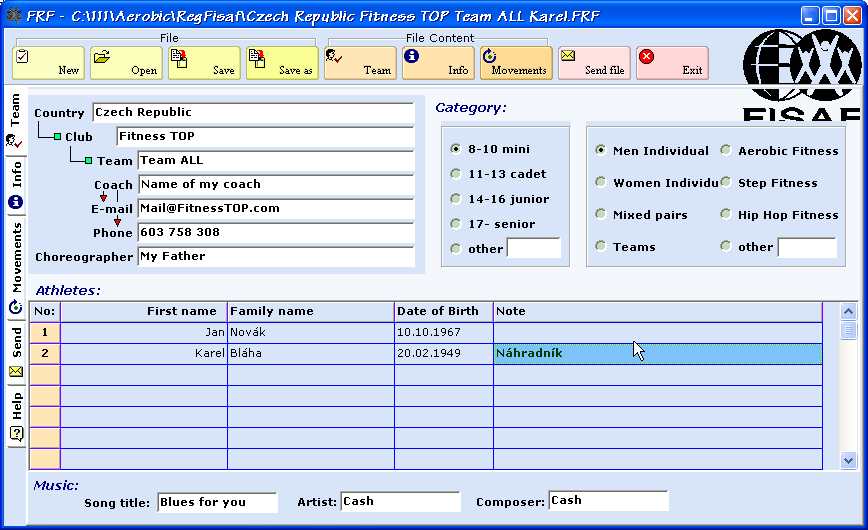
Works on Windows 98 or better (possibly also on McIntosh having emulator for Windows – this option was not tested). Free for download at www.polarcz.com/FRF. Start the program by clicking on REGFisaf icon. The FRF enables:
1.
Creation of an individual routine:
2.
Registration with
3.
Easy work with the file: Common operations with the file are executed by the following buttons: New (to create a new file), Open (to open already existing file), Save and Save As (for further changes, necessary before sending). The program consists of following pages: Team
Info
Movements
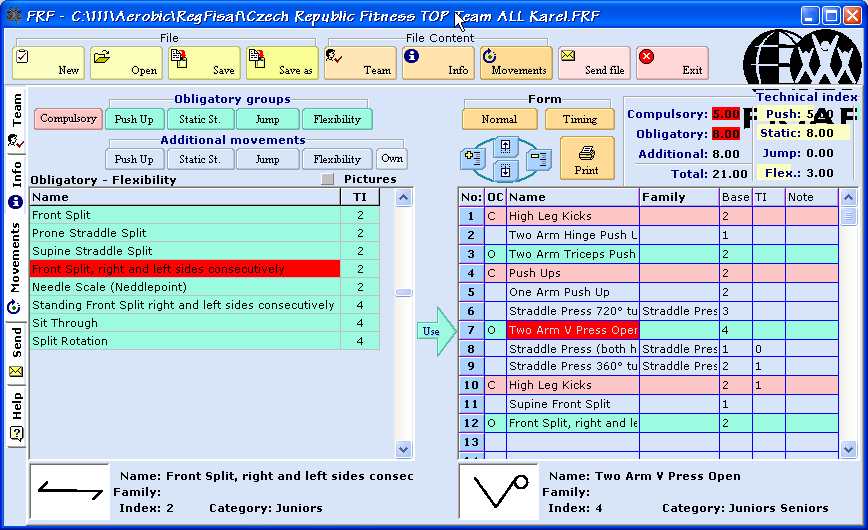
After clicking on the appropriate button in the left upper corner opens the list of movements with their pictures and technical index. (Checking of Pictures item displays icon of each movement, which makes the list longer, without checking single-line verbal description only displays). Selection of movement and clicking on the Use arrow transmits the movement into the table for creation of the routine on the right. Normal and Timing forms of the routine table are available – without or with timing (30 second intervals of the routine). The technical index (TI) is calculated – total, for compulsory, obligatory and addtional moves, with respect of push up, static strength, jump, and flexibility group, and time interval of the routine. The blue buttons above the table enable shifting of the line up and down, and insertion and deletion of the selected line.
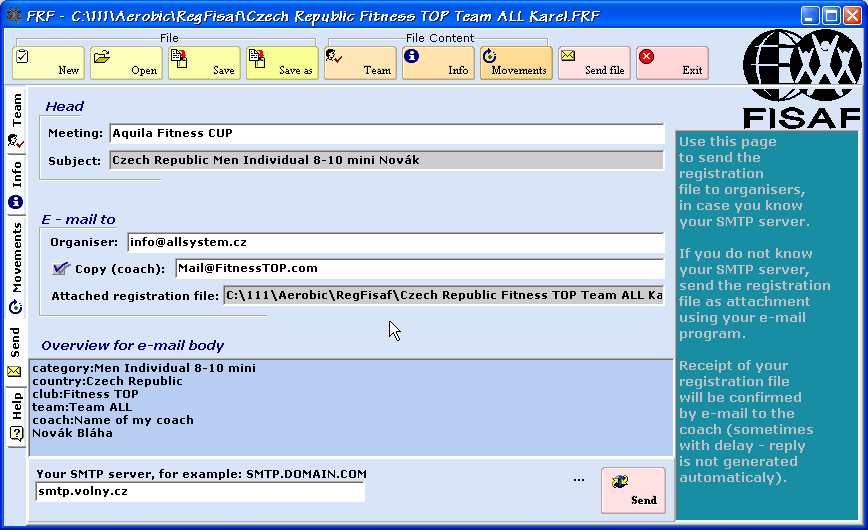
Send fileThis page is determined to send the file directly from FRF in case that you know name of your mail server (SMTP, You obtain it from your internet connection provider), which you write in the line next to the Send button in the right part of the page, or you use any mail clinet (if you have your mail client configured in your PC it is filled automatically in the line next to the Send button in the left part of the page). · You write in the name of the competition (Event) and e-mail address of organisers (or anybody who is responsible for processing of registrations). · Subject of the message and brief information (Overview) is filled in, and attachment of the FRF file are carried out automatically. · If checked and filled in, the copy of the message will be send to coach or anybody else to hold control on what had been sent away. OR In case that you do not know your SMTP (mail) server and do not use any mail clinet, then save your FRF file and sent it as an attachment by your ordinary e-mail. Name of the competition, for which you register, should be reported as the Subject of the e-mail message. The receipt of your message with the enclosed FRF file will be confirmed by organisers to the e-mail of coach reported on the Team page of the FRF file. In case of any question, remark, suggestion for improvement, please, contact the author of FISAF Registration Form Program: Ing. Josef Dvorak Prague, Czech Republic Tel: +420 603 758308 (Josef), +420 737 326154 (in English Katerina Dvorakova) Many thanks to Dr. Jana Hajkova for her help with creation of lists of movements, movement icons and TI calculation. |
FRF – FISAF Registration Form
Funguje na Windows98 a nov j ch verz ch (snad t na McIntosh pokud m emul tor pro Windows – tato mo nost nen vyzkou en ). Program FRF je k dispozici ke sta en zdarma na www.polarcz.com/FRF. Spu t n programu po nainstalov n kliknut m na ikonu REGFisaf. Program FRF umo uje:
1.
Vytv en sestavy pro sportovn aerobik:
2.
Registraci:
3.
Snadnou pr ci se soubory: B n operace se souborem jsou prov d n pomoc n sleduj c ch tla tek: New (vytvo en nov ho souboru), Open (otev en ji existuj c ho souboru), Save a Save As (pro pozd j pravy, nutn p ed odesl n m souboru). Program obsahuje n sleduj c str nky: Team
Info
Movements
Po kliknut na tla tko v lev m horn m okraji str nky se otev e odpov daj c seznam cvik s ikonami a technick mi indexy. (Za krtnut m polo ky Pictures se zobraz jednotliv cviky s p slu n mi ikonami (del seznam), bez za krtnut je seznam cvik pouze se slovn m popisem (jedno dkov zobrazen )). Kliknut do p slu n ho dku a n sledn kliknut na ipku Use p enese vybran cvik do tabulky pro vytv en sestavy, kter je v prav sti str nky. Normal a Timing jsou dv mo n formy tabulky pro vytv en sestavy – bez asov ch daj i s intervaly 30 sekund. (Doporu eno pou vat Timing). V pr b hu tvorby sestavy je vypo t v n technick index (TI) – celkov , pro povinn , povinn voliteln a dal cviky, d le s ohledem na skupiny push up, static strength, jump a flexibility, a asov intervaly sestavy, pokud je pou ita forma Advanced. Modr tla tka nad tabulkou umo n posun dku v tabulce sm rem nahoru i dolu, p padn vlo en i vymaz n vybran ho dku tabulky.
Send fileTato str nka umo uje odesl n souboru p mo z programu FRF, jestli e zn te jm no Va eho po tovn ho serveru (SMTP, z sk te od Va eho poskytovatele internetov ho p ipojen ), kter vypln te do dku u tla tka Send v prav sti str nky, nebo jestli e pou v te n kter po tovn klient (pokud jej m te nakonfigurovan ve Va em PC, vypln se automaticky do dku u tla tka Send v lev sti str nky). · Vypln te n zev st e (Event) a e-mailovou adresu organiz tora (nebo kohokoli zodpov dn ho za zpracov n registrac ). (Info@allsystem.cz / Dvo k Josef) · Vypln n p edm tu zpr vy (Subjekt), vytvo en stru n informace o jej m obsahu (Overview) a p ipojen souboru FRF je provedeno automaticky. · P i za krtnut polo ky Copy a vypln n e-mailov adresy ode le program FRF automaticky kopii zpr vy na uvedenou adresu (slou ke kontrole, co bylo odesl no a komu). V p pad , e nezn te sv j po tovn server (SMPT) ani nepou v te po tovn klient, pak po ulo en souboru FRF jej m ete odeslat zcela b n m zp sobem jako p lohu jak mkoli e-mailem, kter pou v te. V tomto p pad je t eba do p edm tu e-mailu uv st n zev sout e, na kterou se p ihla ujete. P ijet Va zpr vy s p ilo en m souborem FRF V m organiz tor potvrd na adresu uvedenou na str nce Team (e-mail tren ra) v p ijat m souboru FRF. V p pad jak hokoli dotazu, p ipom nky, n vrhu na zlep en t kaj c ch se programu FRF obra te se, pros m, na autora programu FISAF Registration Form: Ing. Josef Dvo k Praha 7, Jana Zaj ce 24 e-mail: info@allsystem.cz Tel: +420 603 758 308 Vytvo en programu FRF s kompletn m seznamem cvik v etn jejich ikon a v po t TI z sadn m zp sobem p isp la dr. Jana H jkov , kter t mto d kuji. |
|
|
|
|
|
|
|